Generating Canal Naming for a Resolved Network
Generating a naming - cross-referenced - labels for each canal route in the network is a true test of fully resolved network, that guarantees smooth workflow in subsequent network analysis and design tasks.
To create a desired naming for the network of canals just resolved, first a naming style is needed.
Defining Canal Naming Style
There are multiple styles available to generate a canal naming, depending on the project type, scale and user preference. To create a naming style go to Workspace > Manage Design Criteria > New Namiing...
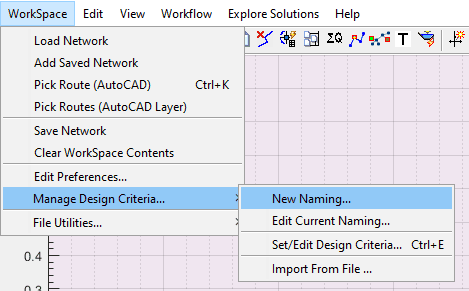
This will start the Edit Variables Dialog, set each variable to desired values as follows:
-
Canal Network Naming: This prescribes the exact sequence of naming to be followed begining from the primary level (1st generation) canal all the way to the last level of of canals.
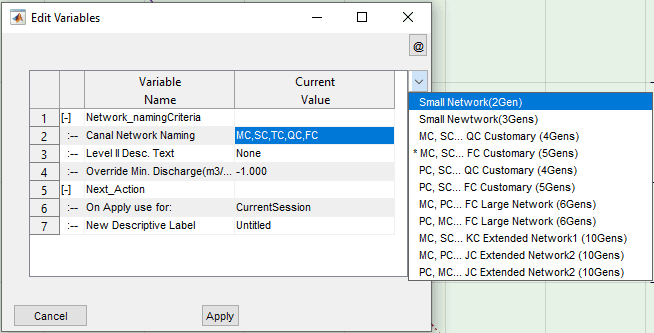
Available options for Canal Naming
-
Level II Desc. Text: Defines the text to be used 2nd level (2nd generation) canal rotues in the network.
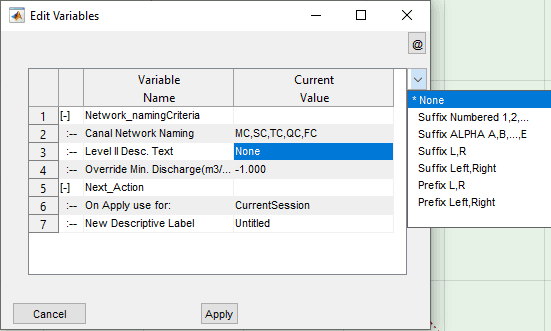
Available Options for Descriptive texts
Note: If the number of 2nd generation routes are more than the set number of level descriptors, the applied suffix (or prefix) text will repeat it self.
For instance, if 'L' suffix descriptor is used for an MC, SC, TC... naming, and there are 5 secondary canals, the naming on the SC routes will be SL, SR, SL, SR,and SL.
-
Over-ride Min. Discharge: The setting for this variable is overwritten in the design criteria. Hence users may leave this to the default value of -1 (representing None)
-
Next Action: On Apply Use For: leace as is
-
New Descriptive Label: Optional string to spefify the naming style defined, to help easily idenfity for latter use.
Note: All inputs must be selected from the avaiable options, and no custom inputs are accepted.
As a best practice, it is always recommended to use a naming with sufficient levels (at least a few levels longer than expected ) to label all generations in the network. Otherwise, erros will arise further lengthenning the tiime taken to resolve the network.
Upon completion, hit the Apply button. This will invoke the Get Design Criteria? dialog. It is essential to confirm to this dialog with the Yes button.
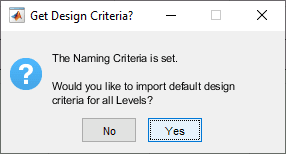
Get Design Criteria dialog
This will import the default design criteria set for the network data, which can latter be altered to meet specific design conditions.
Creating the naming list is completed here. The next step is to attempt to generate canal naming to each route, and resolve any remaining issues in the network.
Create Naming
To create names for each route in the canal network, based on the naming style just defined (above):
-
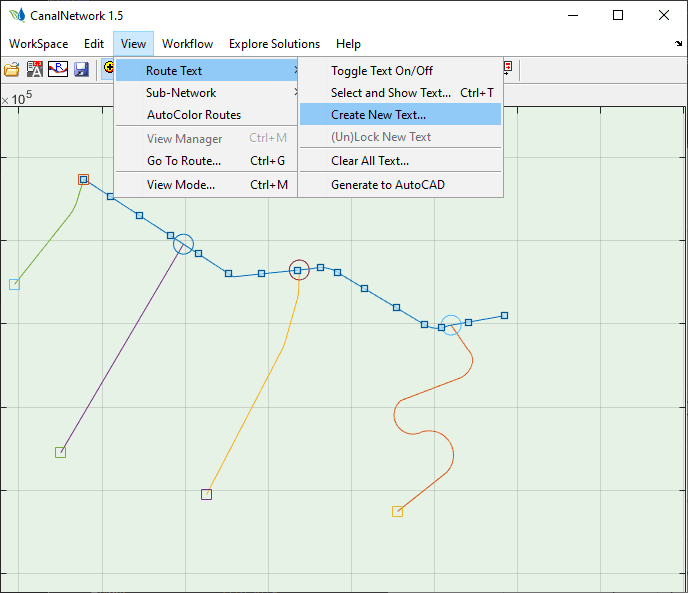
Select the primary level canal for the project by left-clicking on it in the layout view area.
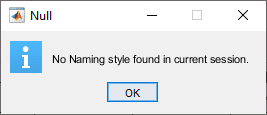
If a naming style is not defined yer, the below dialog will terminate the process. Define a naming style and try again.
-
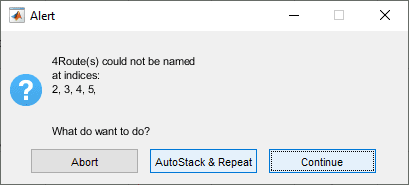
Go to View > Route Text > Create New Text... A process dialog such as shown below may apear. Choose
AutoStack and Repeatuntil all issues are handled, or the number of issued does not reduce any more.
-
Choose Tag on the dialog, and hit
OK.
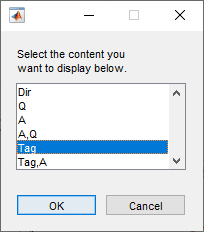
A naming style is generated per specifications, and applied to each route. A table also lists the naming applied to each route ID.
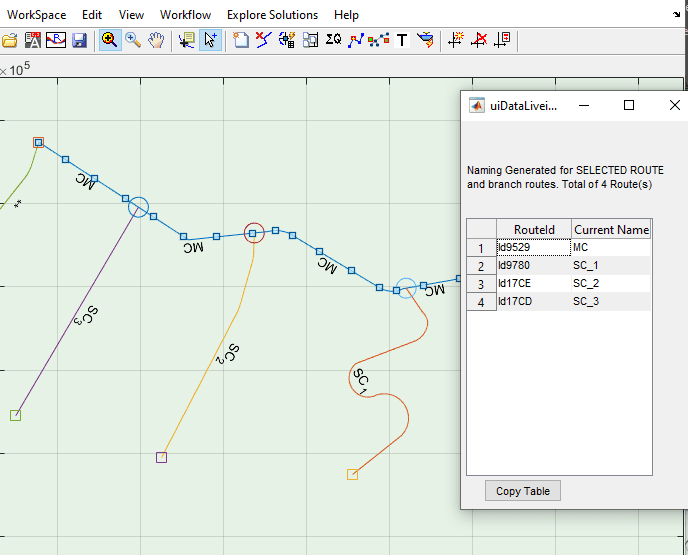
A network data is accepted as fully resolved if all routes are succesfully named with appropriate level indices.
Beware of double astrisk (** or place holder) strings. These indicate routes whose connections have not been resolved fully in earlier node identification and resolution process. In the screenshot above, for instance, the last route has an issue. It can be seen that the connecting node to the parent canal envisages and EoC node, and not a branch junction node. This must be resolved to get the correct naming. Pan and zoom in the entire network area to see if there are any ** labels and resolve any issues causing them.
FInd Text dialog invoked using Ctrl + F keyboard combination.
Use Ctrl + F keyboard combination to search for such texts in large networks. If found, they will be highlighted for easily locating them.
Note: Some times, you may need to change the name of a parent canal. For instance for canal exceptions. In such cases, the branch canal naming must also change accordingly. Or you may just want to re-create the text. You can easily achieve this by running
Edit > Route Text > Create New Textcommand for the desired route.
Exceptions for Canal Routes
In some cases, the automatic assigning of a generation to a canal route may not serve the needs of the project. For instance, a canal may need to be designed as a TC route despite its parent canal is an MC or TC canal. To allow such unusual design requirements, the exceptions method is available. This allows to manually assign a generation or level to a route.
Setting Exceptions
To manually override the naming for a canal route:
-
Click on the canal route whose route name is to be manually changed.
-
Go to
Edit > Route Exception > Exception for Current Route.
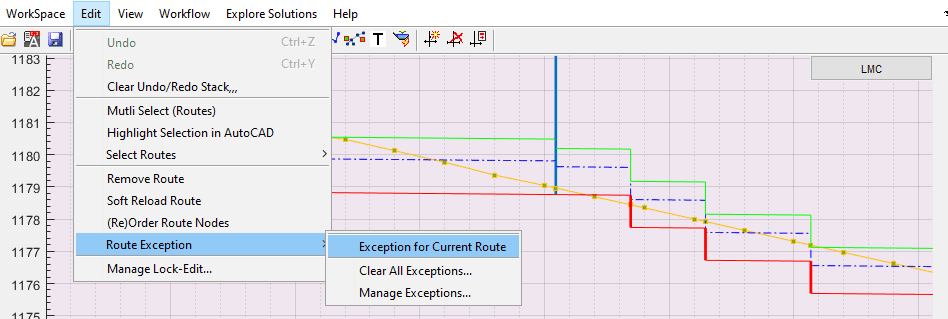
This will invoke the dialog box to manuall insert the desired canal naming.
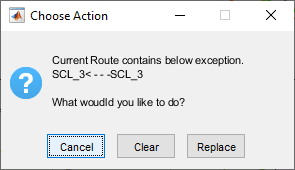
If a previous exception is found, a dialog similar to below will apear showing more information, and also requesting for confimation of action.
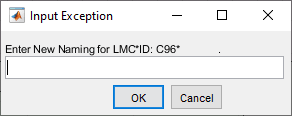
If Replace is confirmed, the above dialog Input Exception is displayed.
-
Input the desired exception naming in the dialog.
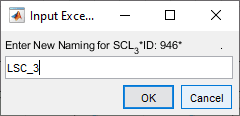
Note the following requirements:
-
The first letter has always to be an alphabet
-
No brackets, hyphens, or special characters are allowe, except the under-score character.
-
The name must be formatted as [prefx]GEN[suffix]_numbering1_numbering2 ...
-
Do not use numbers before the first underscore. Eg. RTC1_1_2 (This will impact quality of generated text to AutoCAD)
-
GEN must be an exact match to one of the generations defined in the naming style for the project. Do not use multiple GENs in one exception, Eg RTC_MC_1.
-
Prefix OR suffix are optional. If provided, they must match the prefix or suffix settings defined in the naming style for the project.
Recommended: It is best to use alphabets for the first nubering, although not mandatoru. For instance, TC_2_A is better than TC_2_1, becuase subsequent naming for the next TC will continue from TC_2_1. This results in two canals of the same name.
-
Click on
OKto confirm manual override. The naming is applied to the route selected. -
Note that manual overrides means, a different design criteria is required fot the route in question. Hence, a dialog requesting to confirm resizing operation is displayed. Confirm to proceed.
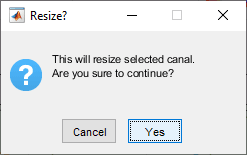
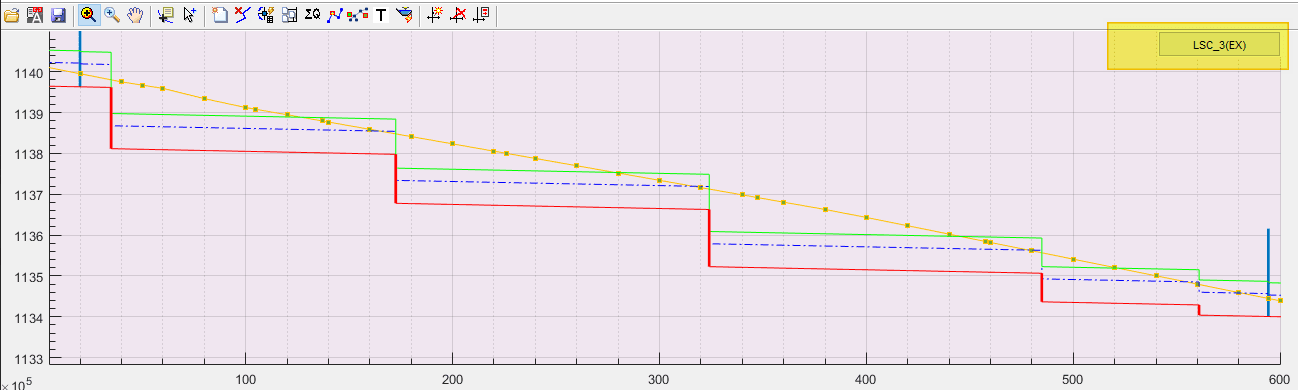
This completes the exception definition process. Note that canal routes named with exceptions have their names (in the profile view) displayed with an (EX) suffix, as shown in below example.
Tip: Since Feb2025, you can create exception names for multiple routes at a time. Just select the canal routes, and start the naming process. Put the character or number you want to change in square braackets, and the names are applied sequentially based on their location along the parent canal.
Managing Exceptions
You can manage the exceptions set for the entire project in one place.
-
Start the command
Edit > Route Exception > Manage Exceptions....
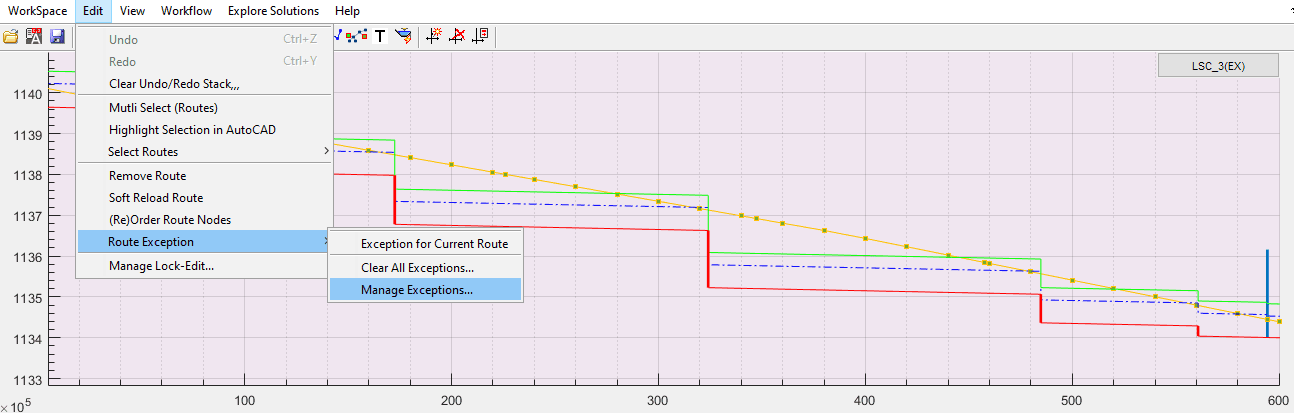
This will list of all exceptions set for the entire project data.
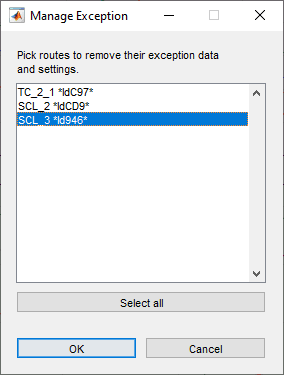
-
Select the route whose exception data you want to remove, and click
Ok. Note that the displayed route names are as per current exception naming set. The below confirmation dialog appears.
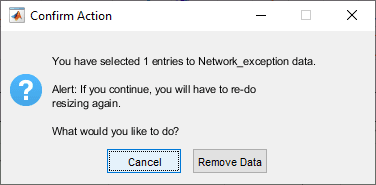
Note: This dialog also warns that resizing must be manually handled. So apply resizing on the route, before proceeding to design immediately after this change.
-
Click on
Remove Datato confirm your action. This will (a) remove all exception data for the selected route, and (b) re-instate the original naming for the route, which is created during the initial canal naming task.Click on the route again, to see its rolled back naming on the profile view.
Note: The original naming for routes (generated automatically) may not be available, especially after repeated renaming. If you want to re-instate original naming, clear all exceptions for the project (or the deisred route), create route naming text as new and proceed.
If you want to clear all exceptions set for the entire project, choose View > Route Exception > Clear All Exceptions... menu command, and confirm to the dialog box.
Notes on Eceptions
When working with route name exceptions, it is important to note the following behaviours.
-
No limits to the number of exceptions that can be set in a given project.
-
Exceptions are persistent, retain the value set even when new name creation is requested from
View > Route Text > Create New Textmenu command. -
The naming style should be strictly consistent with the currently defined naming style. If naming style, or its parameters, are changed (which is not recommened), errors in data processing are bound to occur and difficult to resolve easily.
Rendering Names to AutoCAD
The canal namimng generated as described above can be exported to the AutoCAD environment to label each source alignment object of the canal network accordingly. To export naming:
-
Make sure the desired text is displayed on the layout view area. Toggle the text view button on if not already. Use
View > Route Text > Select and Shot Text...menu command if not already.
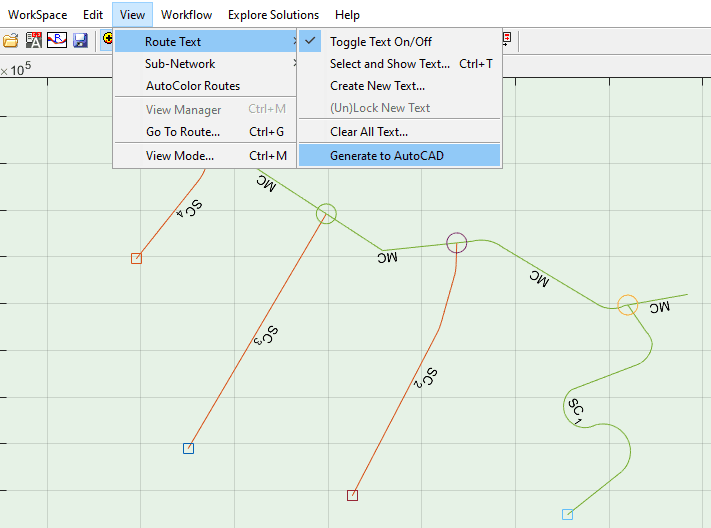
Sample Layout map with Canal naming displayed.
-
Choose
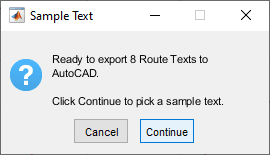
View > Route Text > Generate to AutoCADmenu command. This will invoke the Sample Text dialog.
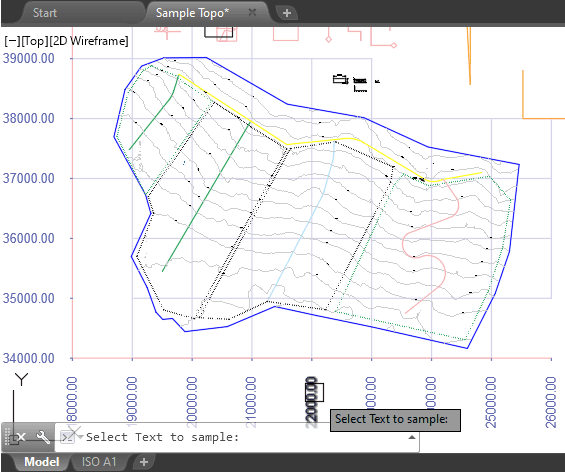
-
Choose
Continuebutton. AutoCAD environment is now in select mode waiting for user input. Pick a sample text.
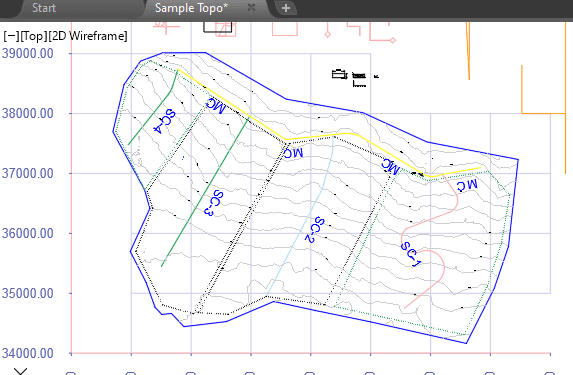
All texts are generated to AutoCAD environemnt using the text height of the sample text selected above. Other similar information, for instance Area and Discharge capacity, can also be generated using this method.
Tips on Network Resolution
Swapping Canal Order for Naming
The order in which canal branches are read in to a node is on first-found first-registered basis.
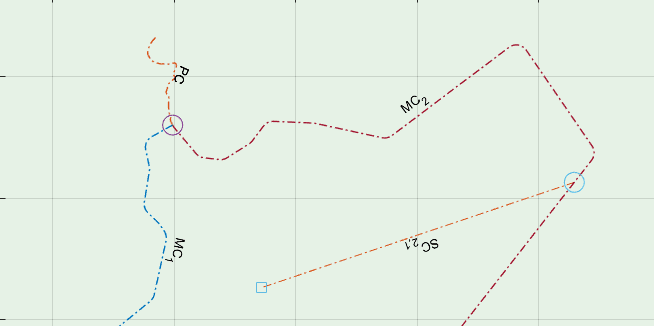
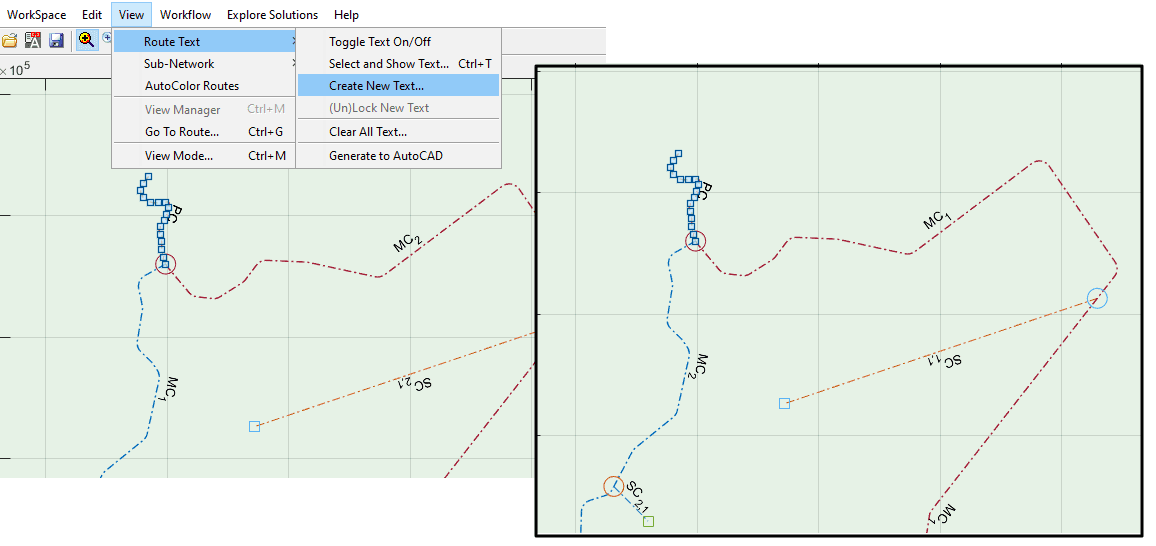
In the above figure, the Right side (Facing downstream) canal is registered, and the left side registered last. Hence, the naming MC_1 and MC_2 respectivly. To change the order of such branches:
- Select the MC_1 route, and click on the branch node. On the Edit Node dialog, use
Remove (Merged)button to remove the branch.
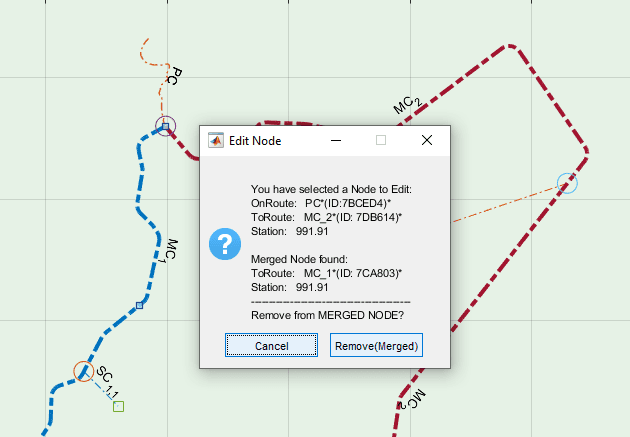
This will leave only the other route (MC_2) connected to the node.
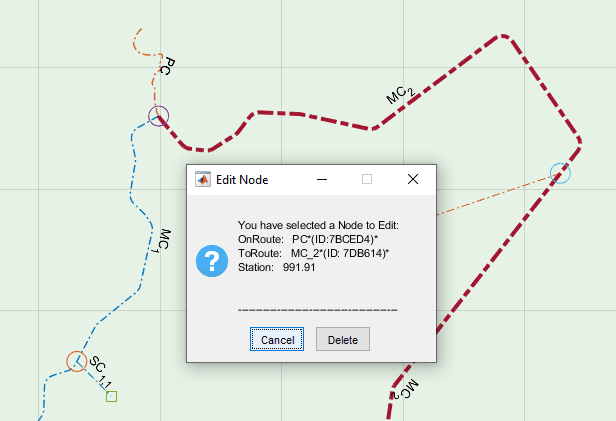
- Then, select the MC_1 route, and click on the node again. This time, the Edit Node dialog offers a different option. Click on the
New Merged Nodebutton.
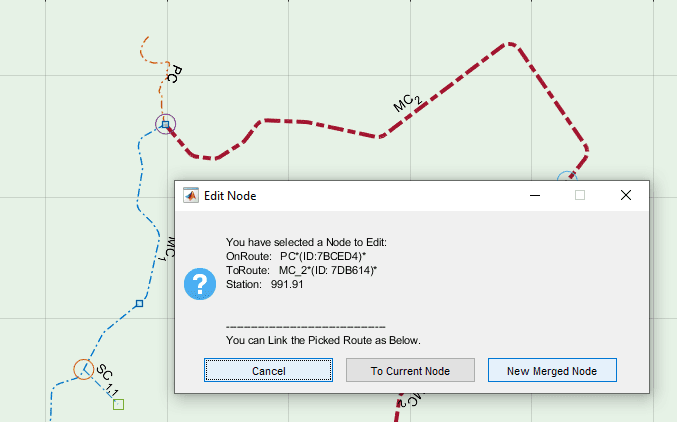
This will ensure that right side canal (facing downstream) is registered next to the left side canal. To see the changes in action, select the PC route and run View > Route Text > Create New Text... menu command. You can see that the names are swapped as desired.
Note: Recreating Nodes on a route, or on an entire network, causes loss of floating node information, as well as related information created including data on design of structures.