Generating AutoCAD Drawings
Longitudinal Profile (LSec) Drawing Generation
Generating longitudinal profiles drawings, also known as LSecs, can be done either for individual canals or for a group of canals. The latter will be uising the Batch Process commands. Either way, LSecs can be generated at any desired increments, if needed creating multiple LSec drawings for a single canal route.
A set of templates are coninually being developed and added. It will be best to generate standard production quality drawings using these templates. In the current version, the available templates are available from the menu as follows.
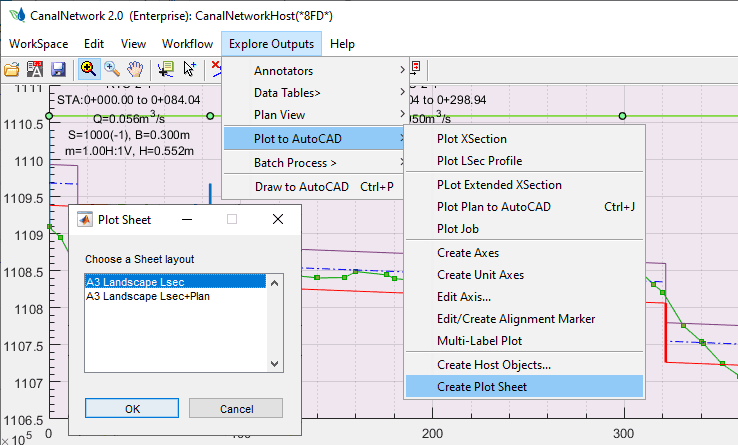
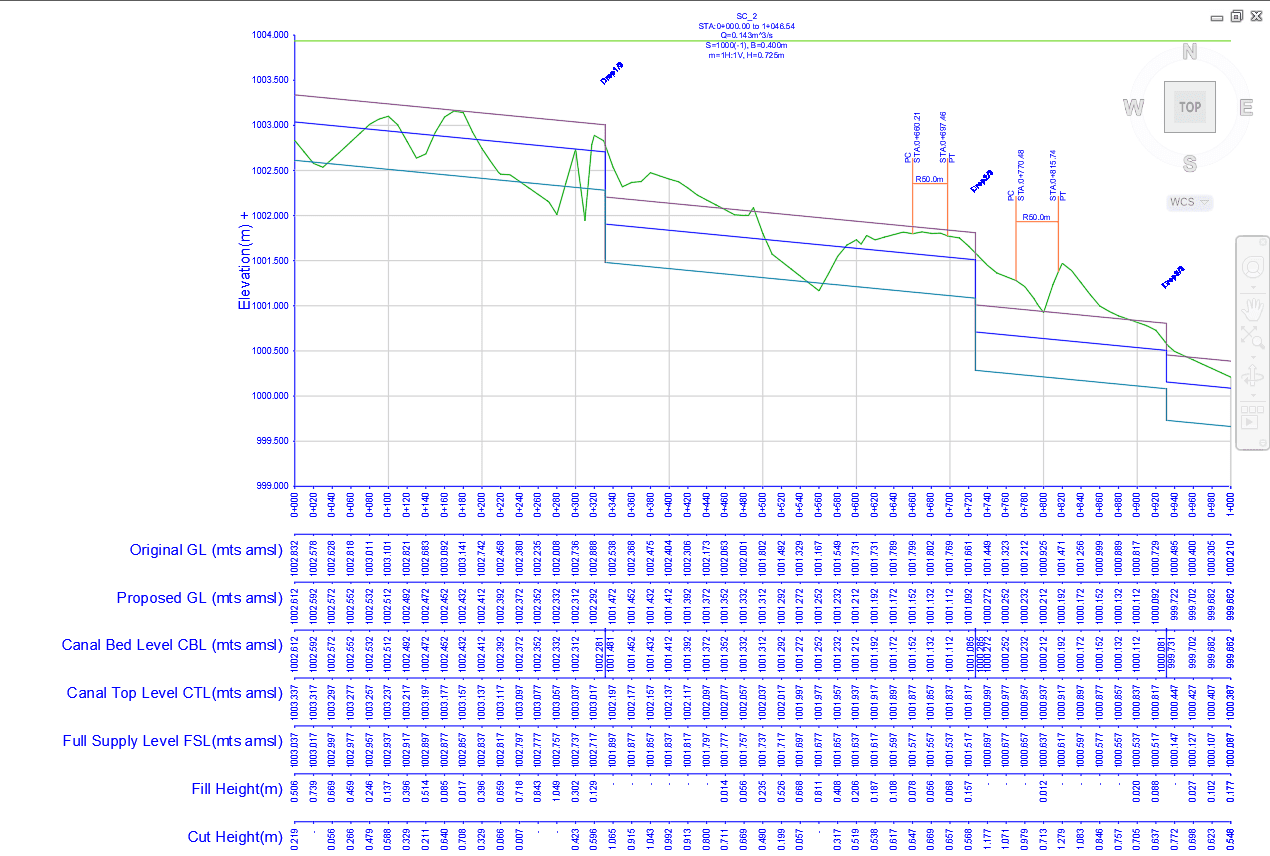
The drawings generated to AutoCAD appear as follows.
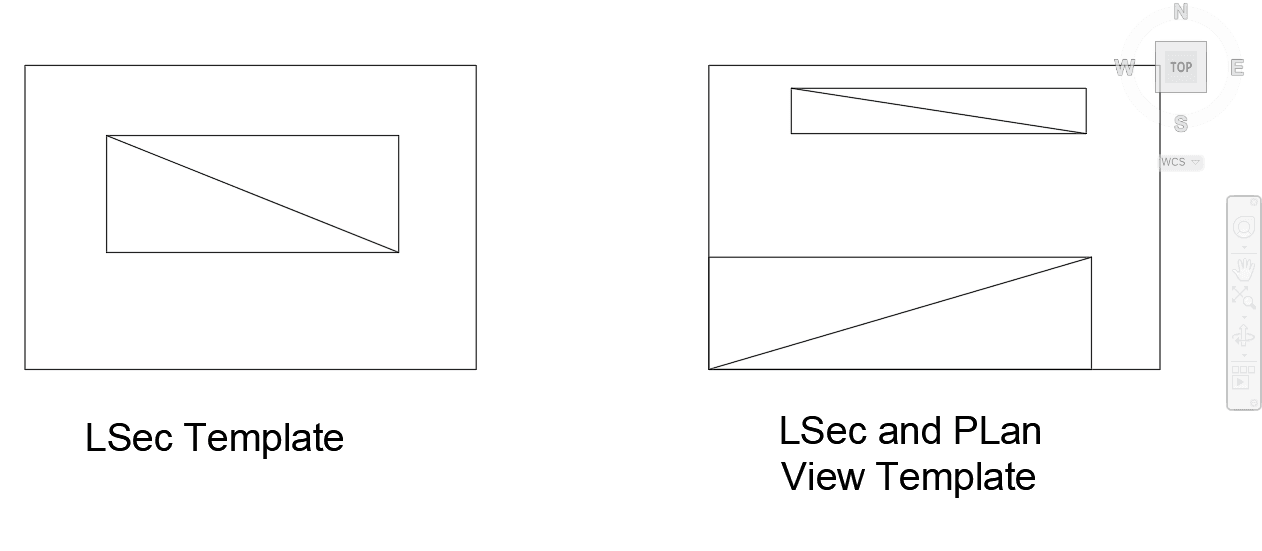
Note: The objects are drawn to 1unit:1mm scale for the paper sizes selected.
Generating Longitudinal Profile drawing for single canal route
Click on the desired route object in Plan View. The longitudnal view will be displayed on the profile view axis.
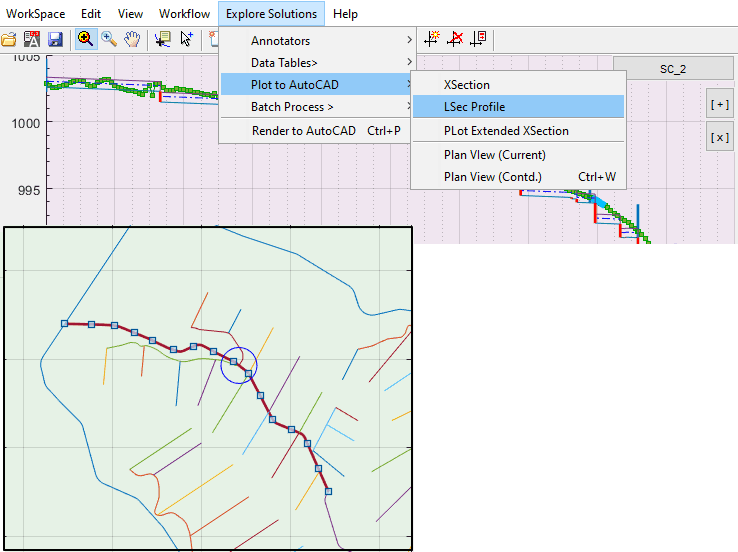
Then:
-
Go to
Explore Solutions > Plot to AutoCAD > LSec Profile. If table data is not complete and available, you will be prompted to extract and try again.
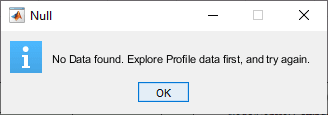
-
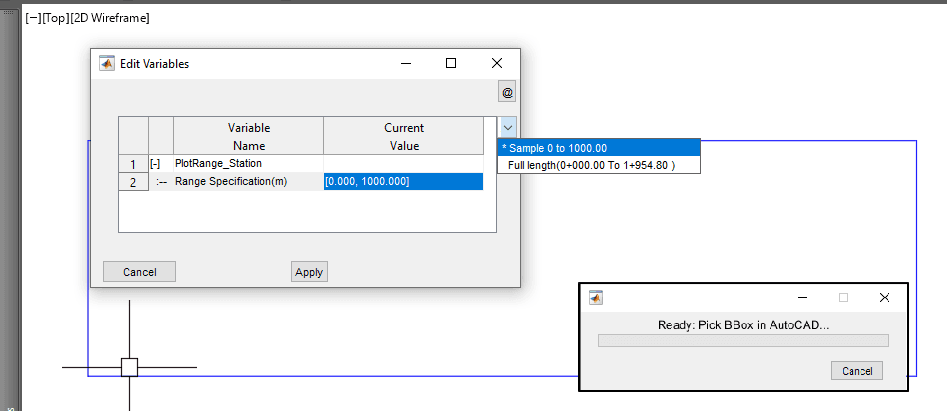
In the dialog set the station range for which the drawing is required. You can click on the more option button at the top right, you will see that you can choose to generate a 1000m long range or the entire range. Choose appropriate option, or set your own, and hit
Apply.
-
AutoCAD will be in select mode. Pick a bounding box where you want the drawing to be placed. This can be any polyline object, preferably a template geneated by the
Create Plot Sheetmenu command. The LSec drawing will be generated to the limits defined by this bounding box object. (See below on scaling of drawings).Note: For consistency in producong drawings, use
Explore Outpus > Plot to AutoCAD > Create Plot Sheetmenu command to generate template objects. -
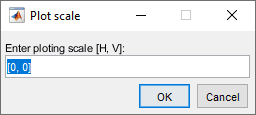
Next you will be prompted to input scaling. Accept the default 0,0 if you want the drawing to fit the box selected. For standard production, you will need to set your own values.
-
The drawing is generated in AutoCAD as shown below. It contains detailed route and curve information including drops, curve markers, and range labels.
Generating Longitudinal Drawing for multiple ranges of a canal route
Often, a canal route is too long to create a single profile drawing. Multiple drawings are required to do the job. This can be done using the batch process option. Start by selecting the route you want on plan view.
Then:
-
Go to
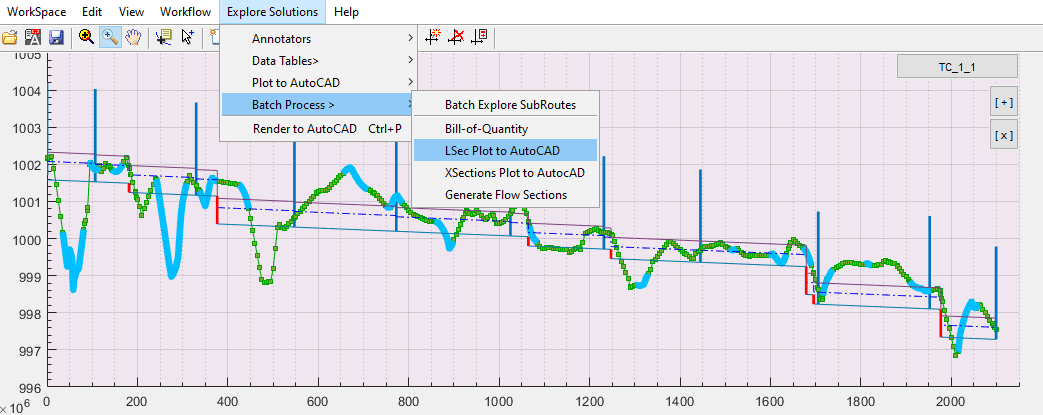
Explore Solutions > Batch Process > LSec Plot to AutoCAD. This will invoke the dialog where you can set the station ranges you want to generate. Use the option button to see default settings.
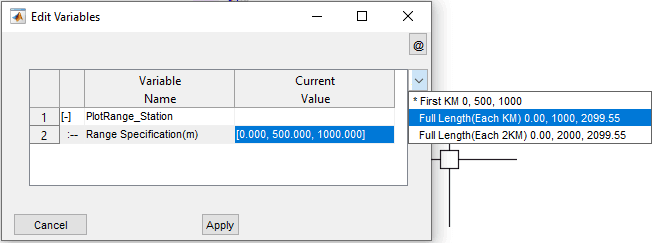
The values are input as follows: [Starting Station, Incremental Length, Ending Station]. For the figure shown above, the route is a little over 2000 meters long. So choosing the range setting of 0, 1000, 2099.55 will create LSec drawings each 1000m long until the end of the route.
-
When prompted, pick the bounding box object. This will be the area where the first drawing will be created. The next drawings will be generated next to this box (to the right) automatically.
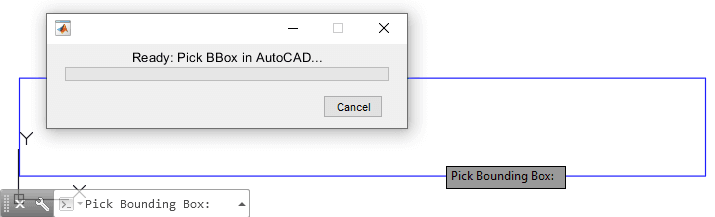
The progress is displayed in a dialog box.
All the LSecs in this session will be created using the scaling you provide here.
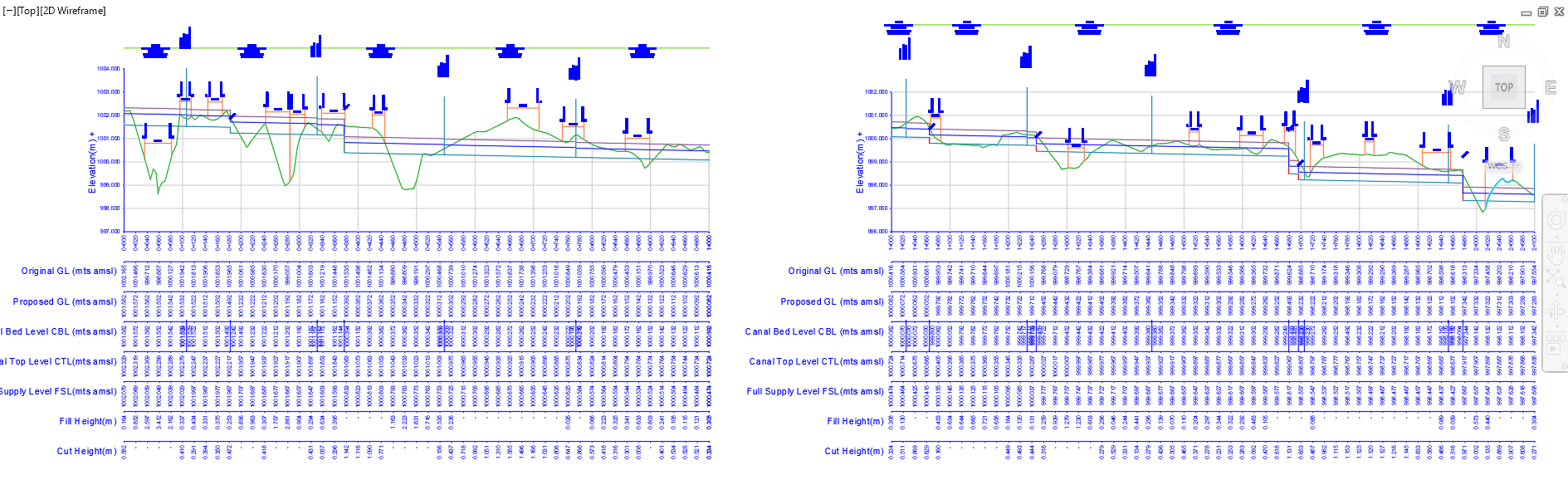
You can see that two drawings are generated, although three is expected 0-1000, 1000-2000, and 2000-2099.55 The algorithm will combine small length drawings to previous ones for presentation quality. Hence the two drawings for station ranges from 0-1000, 1000-2095.5.
Creating Longitudinal Profile Drawings for multiple canal routes
The steps to creating profile drawings for multiple routes are similar to the batch process workflow shown above. Before starting the process make sure all the canal routes have the necessary data for production of drawings. Then:
-
Turn-on multi-select mode from
Editmenu, and select all the routes whouse profile drawings are required inplan view.Tip: To select all subroutes of a given canal, you can use
Edit > Select Routes > Select Sub-Routes. This is helpfiul to generate all QCs of a TC route at the same time, using the same scaling and appearance. -
Start the batch process from
Explore Solutions > Batch Process > Lsec Plot to AutoCAD. -
When prompted provide the scaling desired, and watch it all happen in AutoCAD.