AutoCAD Axes and Markers
Often times one may need to create axes and edit the information displayed depending on the data ploted.
Create a new axes
-
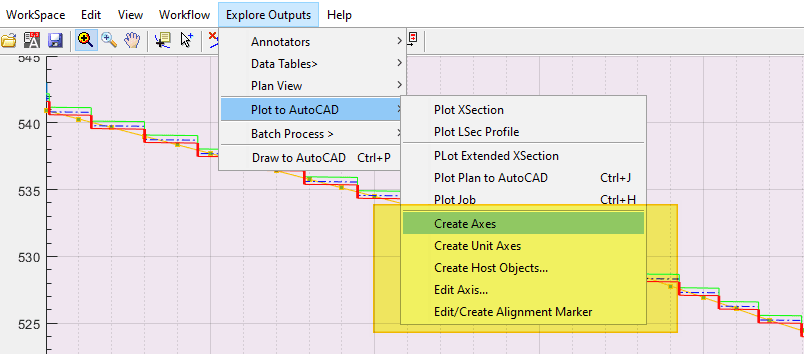
Start the menu command from
Explore Outputs > Plot to AutoCAD > Create Axes. -
In AutoCAD, pick the object defining the bounding box for the axes area.
-
The variable editor dialog appears. Set axis limits for Abscisa and Ordinate as desired.
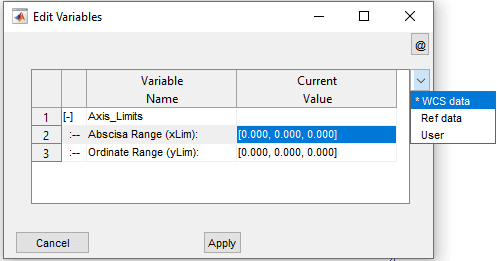
WCS data: Uses the AutoCAD World Coordinate System the object is located to create an axis. This will enlarge the BBox a little to set starting and ending positions.
Ref Data: Use this if the object selected for the bounding box is referenced to a an existing axes pair. All objects (except Host objects) created by iCAD and CanalNETWORK are by default referenced to an accompanying axes.
User: This option lets users define their own start and end for both vertical and horizontal axis.
Note: The value sets are START, STEP, END.
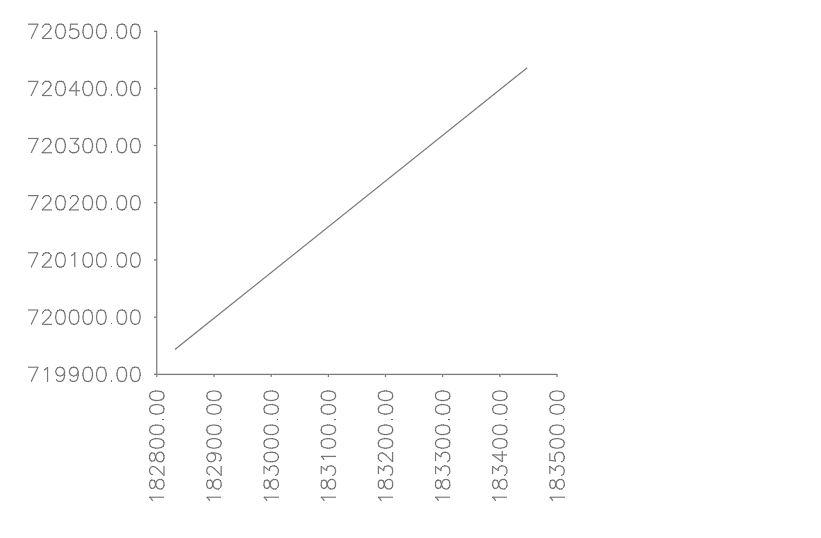
Editing Axis
Used to change the appearance and orientation of axis labels, use below steps.
-
Start the menu
Workflow > Plot to AutoCAD > Edit Axis... -
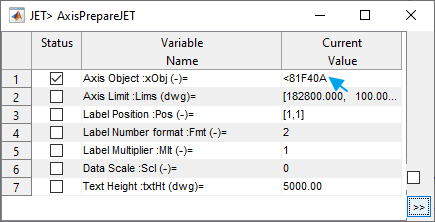
In the dialog, ckick on the first row second column cell, and pick the axis to edit in AutoCAD.
-
The dialog box populates the values of the current setting in the box. Edit as desired.
-
Axis Limits: START, STEP, END (step is not always applied and depends on the size of the axis)
-
Label Position:
-
[1, 0] Left: put labels on left side, (refernce counterclockwise to the box),
-
[1, 1] Left Rotated: as above, but rotated to 90deg.
-
[-1, 0] Right: put labels on right side, (refernce conterclockwise to the box)
-
[]-1, 1] Right Rotated: same as above, but rotated to 90deg
-
-
Label number format: specify how many decimals to use for axis labels.
NB: It is not recommended to change below data, especially for axis contaning referened plots.
-
Data Scale: Input if specific scaling is required for the axis.
-
Text Height: Leave the maximum number to allow automatic sizing of texts.
-
Upon completion, the axis will be redrawn in AutoCAD with the new changes.
AutoCAD Edit or Create Alignment Markers
To create markers along an alignment use below steps:
-
Start the menu
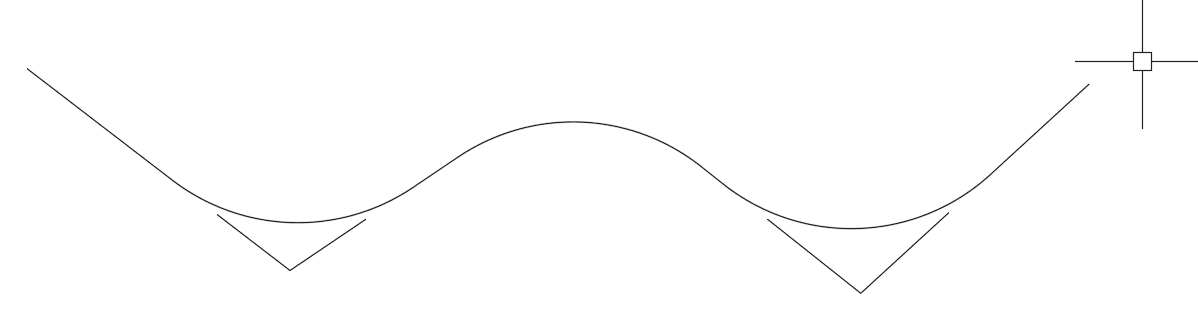
Workflow > Plot to AutoCAD > Edit/Create Alignment Marker. AutoCAD will be ready in select mode, promoting Pick Alignment object to Mark:
-
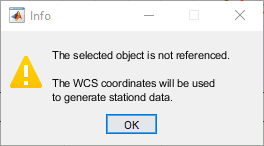
Pick the object for marking. If the object is not referenced, a dialog will apear to confirm the process. Accept and continue. If not, it will continue.
-
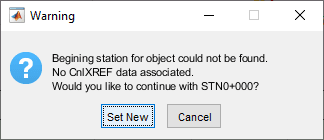
If the Alignment has longitudinal informaiton, it will continue to step 4. If not, a dialog will apear to confirm. Accept
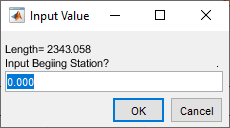
Set New. Input the deisred starting station for the object.
Markers are created using default settings.
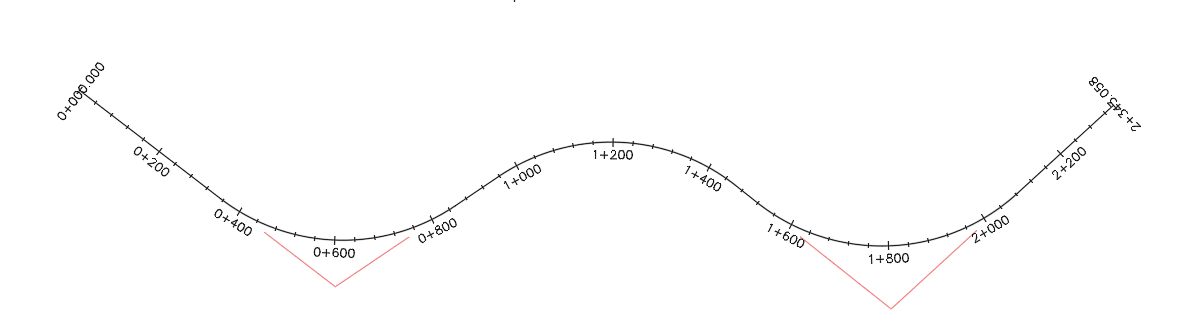
Start the command again, and select the marked alignment to edit the specification for the markers.
-
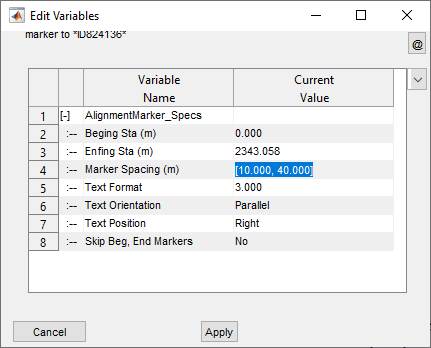
Upon selection of a marked object, the below dialog appears to change how the markers are displayed.
-
Begining Station: Starting marker value.
-
Ending Station: Ending marker value.
-
Marker spacing: Minor and Major Steps for marking the alignment. Major marker locations bear text information, while minor marker locaitons are drawn as simple ticks.
-
Text Format: [A.B notation] A represents the location of + sign on station markers, and B represents the number of decimal places to use when generating station tetxts. For example, for station value of 12345.3456:
-
3.0 will give 12+345
-
3.2 will give 12+345.34
-
0.3 will give 12345.345
-
-
Text Orientation: Parallel orientation rotates anotation texts parallel to the alignemnt object, while Perpendicular rotates them to appear normal to the alignment.
-
Text Position: Specified whethter text is to be put to the right or to the left of the alignment object.
-
Skip Beg/End markers. If editing markers on plan views, the end markers are automatically generated and need not change. Use this option to skip affecting them.
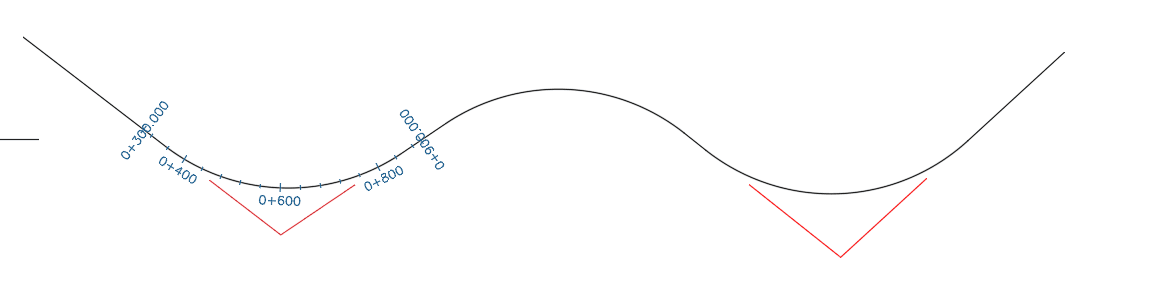
Partial stations can be marked by specifing statting and ending stations accordingly. For the above example, using 300, 900) will work out as below.