Cross Section Drawings
Cross-section views can be generated to AutoCAD in one of three ways. The first method allows to generate cross-sections at preset intervals. An other way is to select and plot desired stations only. The third method allows users to save specific locations whose cross-sections are required, and generate only those specific sections.
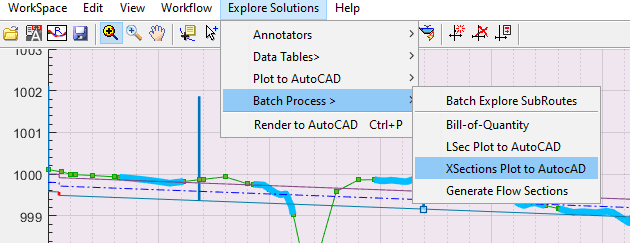
The command to execute this task is accessible from Explore Solutions > Batch Process > XSections Plot to AUtoCAD.
Note. In all cases, the cross-section view is generated FUS with respect to the current route. This is in line with the convention adopted for profile data extraction.
Cross-Sections at increments
To use the first method, start by switching off the XSEC toggle button at the top of the detail view area. Then start the command. You will be prompted with available options for incremental cross-section generation.
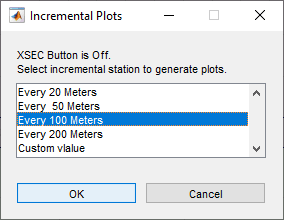
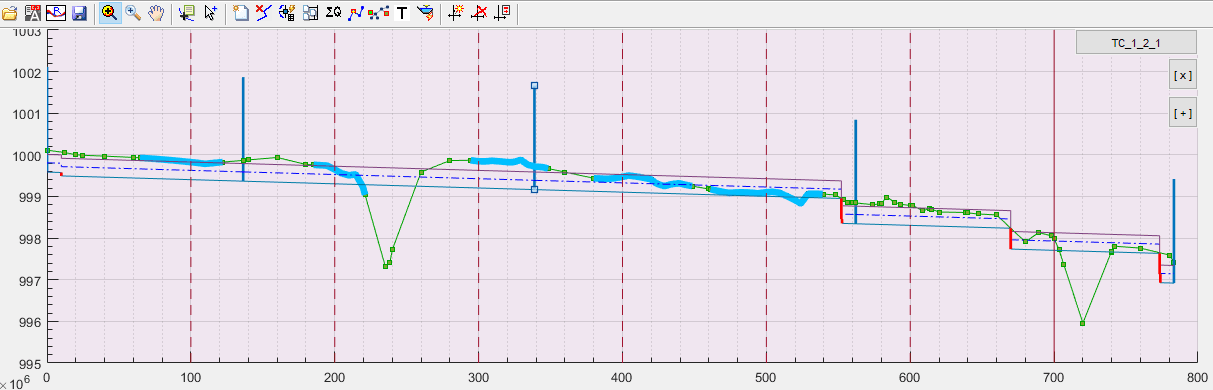
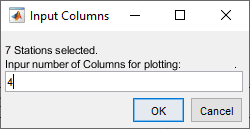
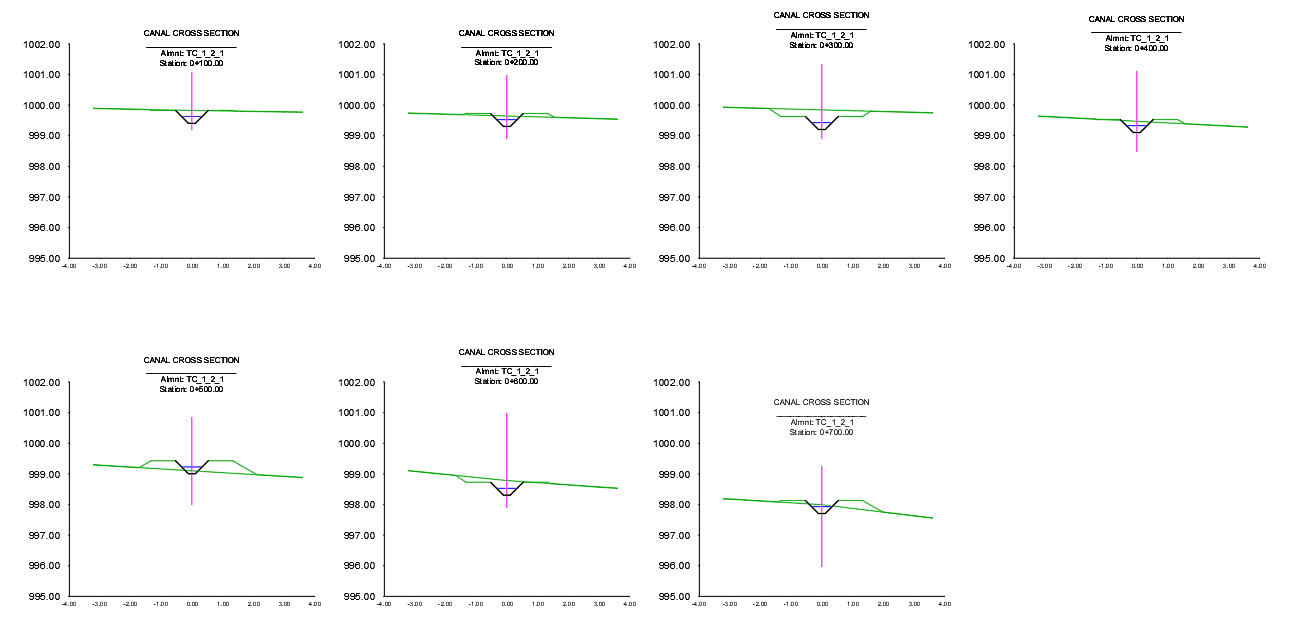
Choose the desired option. Then an iteration for each incremental station is carried out. This attempts to generate the cross-section data at each incremental station. In this example, for instance, 7 cross-sections are found for the shown canal, i.e., at 100, 200, ..., 700m station values, and 4 columns is input which means the plot will be 2x4 array of drawings.
Input the desired number of columns to be used for generating the cross-section drawings. The dialog shows how many drawings are selected.
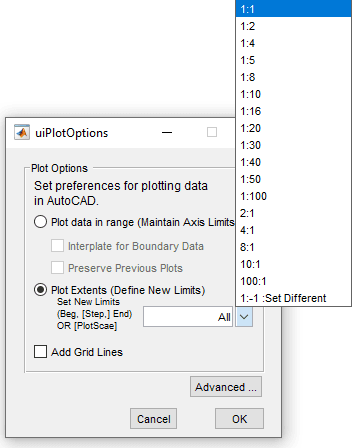
Choose the desired scaling and presentation options in the dialog below.
Note: It is essential for cross-section drawings to have equal horizontal and vertical scaling. To ensure this, choose 'Plot Extents', and set scaling to desired value.
You can also include grids in the plots.
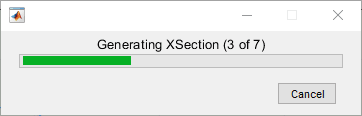
The plotting progresses.
The resulting AutoCAD drawing looks similar to below, as specified a 2 x 4 array drawing.
Cross-Sections for custom list
You can also generate cross-sections at select stations. To do this:
start by switching off the XSEC toggle button at the top of the detail view area. Then start the command. You will be prompted with available options for incremental cross-section generation.
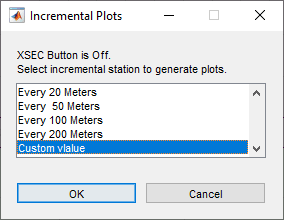
Choose Custom Value option. This will start an other dialog with the list of all stations where data is available for cross-section drawing.
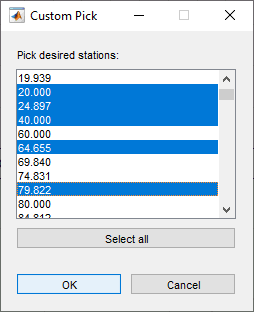
Choose by clicking or draging. Use CTRL + Click to select/deselect individual stations.
The plots are generated for each of the selected station as explained for the previous method.
Note: Stations are rounded upon rendering. For instance station value 24.987 is drawn to AutoCAD with annotation 0+24.90.
Cross-sections at saved locations
This method requires an existing set of saved stations where cross-section drawings are required. Refer to documentation on Longitdinal Design of Routes, to learn how to create and save station data for cross-section generation.
To generate drawings for saved stations:
Toggle-on the XSEC button. Any saved stations will be listed, and also marked on the profile view.
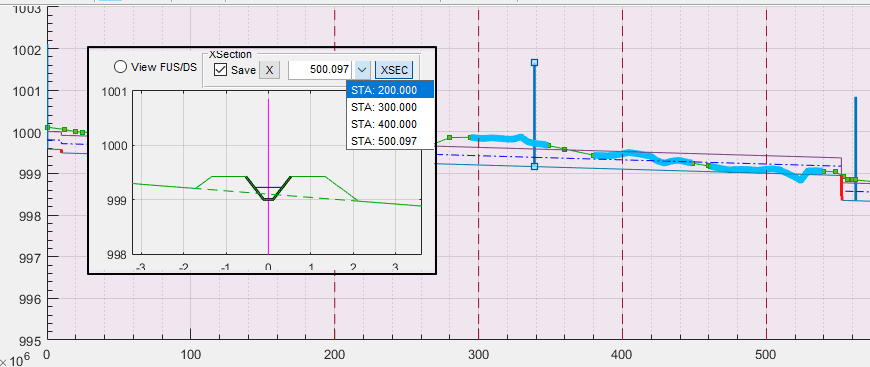
Click on any one station marker on the profile view, to change it to active (continuous line.)
Note: Making one of the station markers active is important. Else, cross-sections could not be created, and process will not succeed with the following message.
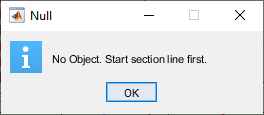
Start the command from Workflow > Batch Process > XSection Plot to AutoCAD. You will be promoted to confirm your desired row size for plot generation.
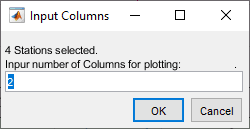
Provide the desired array size for creating the drawings, and Click Ok.
Follow the proceedure for method one above to complete from this step onwards.
Note: While in plan view, the batch process for XSection drawing generation will only create drawings for those cross-sections whose stations are included in the START and END stations of the plan view.
Generating drawings for Canal Structures
Special structures, such as Head Regulators, Cross-Regulators and Inclined drops are designed outside of CanalNETWORK using iCAD's CanalStructuresJETmodule. A complete set of tools is available with in iCAD environment the drawinsg for these structures.
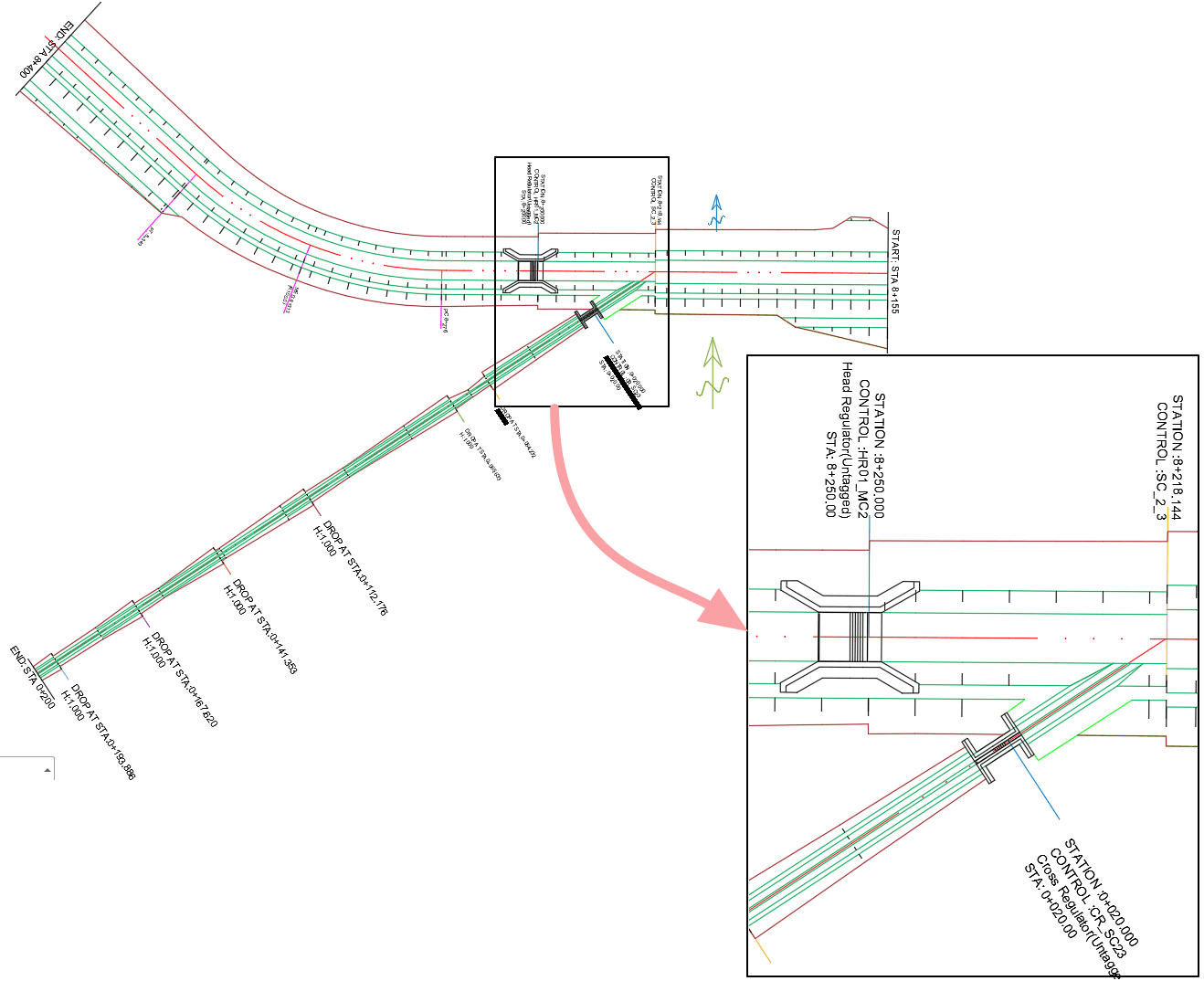
Refere to pertaining documentation on Design of Canal Structures using FLoating Nodes, for details. Note, the drawings can be overlayed on a generated plan view to create woring drawings, such as the one shown below for canal intersection location.