Generating Table Results
There are different products that the user can generate from a succesfully compelted design for a canal route. These are three main groups of outputs.
-
Table data:
including design schedule table, table listing for structures/ controls, table listing for flow sections, as well as Setting-out table data.
-
Bill of Quantitity
a report of a detailed and complete bill-of-quantity document suited for export to differnt formats (doc, html)
-
AutoCAD drawings
Including Flow sections, Cross-sections, Longitudinal profile Design, and Plan Views
Below sections show how to generate these data.
:exclamation: Important Note: Some components of this solution may not be available on your application depending on the version you are using, and your subscription level. Contact us for any querries.
Table Data
Table data are results of design work for a particular canal route that can be presented as a table listing. The following are typical table data that can be generated for a selected route.
-
LSec Profile Data
-
FLow Section Data
-
Schedule of Controls, Drops, Turnouts, and Division Boxes
See Exploring Solutions under Longitudinal Design of Canals Section, for details on each of these.
Bill-of-Quantity
Bill of Quantity document is one of the key outputs of a design task. In CanalNETWORK product, this is a fully automated process. The output can be created in many different ways.
Note: Often, the volume of cut and fill involved for a canal route is a design decision tool. To explore these values, the best way is to use the annotation tools from
Explore Solutions > Annotators. See relevant section in this guide.
Preparing for BoQ extraction
Before BoQ can be extracted accurately, all elements of the canal route - i.e., profile data and structures data must be updated. To ensure all data for the elements correspond to the most recent design changes, fully exploring solutions is a mandatory step, especially before BoQ extraction. This ensures that every element of the canal route are upto date.
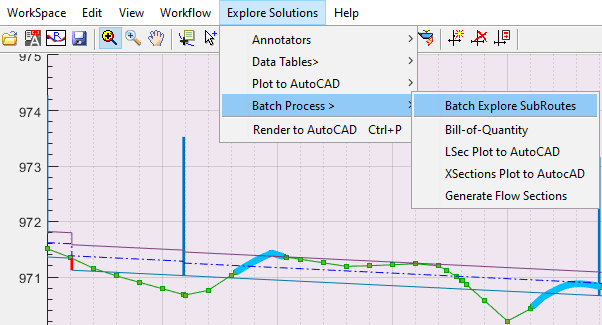
This can be easily achieved by invoking the batch process from Explore Solutions > Batch Processes > Batch Explore SubRoutes.
This will invoke the following dialog, indicating which level is selected currently (in this case TC) and to confirm which levels of canals to automatically explore and update.
Once can choose a single level, or multiple levels. In either case, a confirmation is requested that lists the name and number of canals that will be processed.
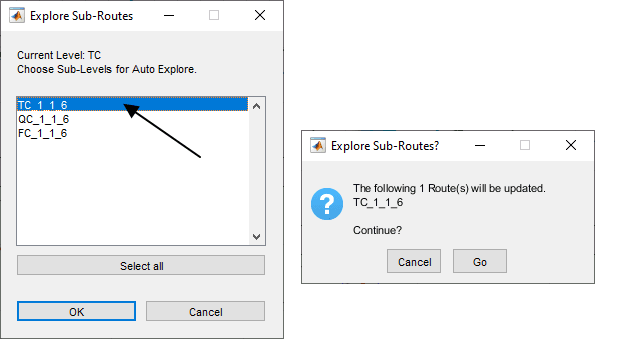
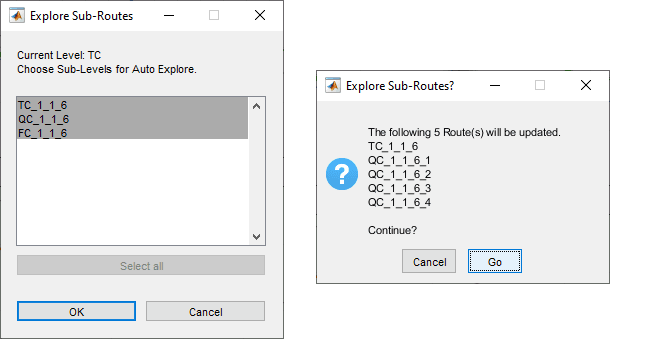
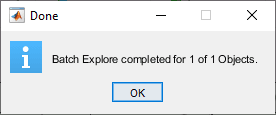
Confirm Go and all relevant canal routes are auotmatically updated for the latest design data. The following dialog confirms the actions taken.
Note: BoQ created with out updated control and structures data can be incomplete, or inaccurate.
Bill of Quantity for a Canal Route
The general steps to creating a bill-of-quantity output is as follows:
-
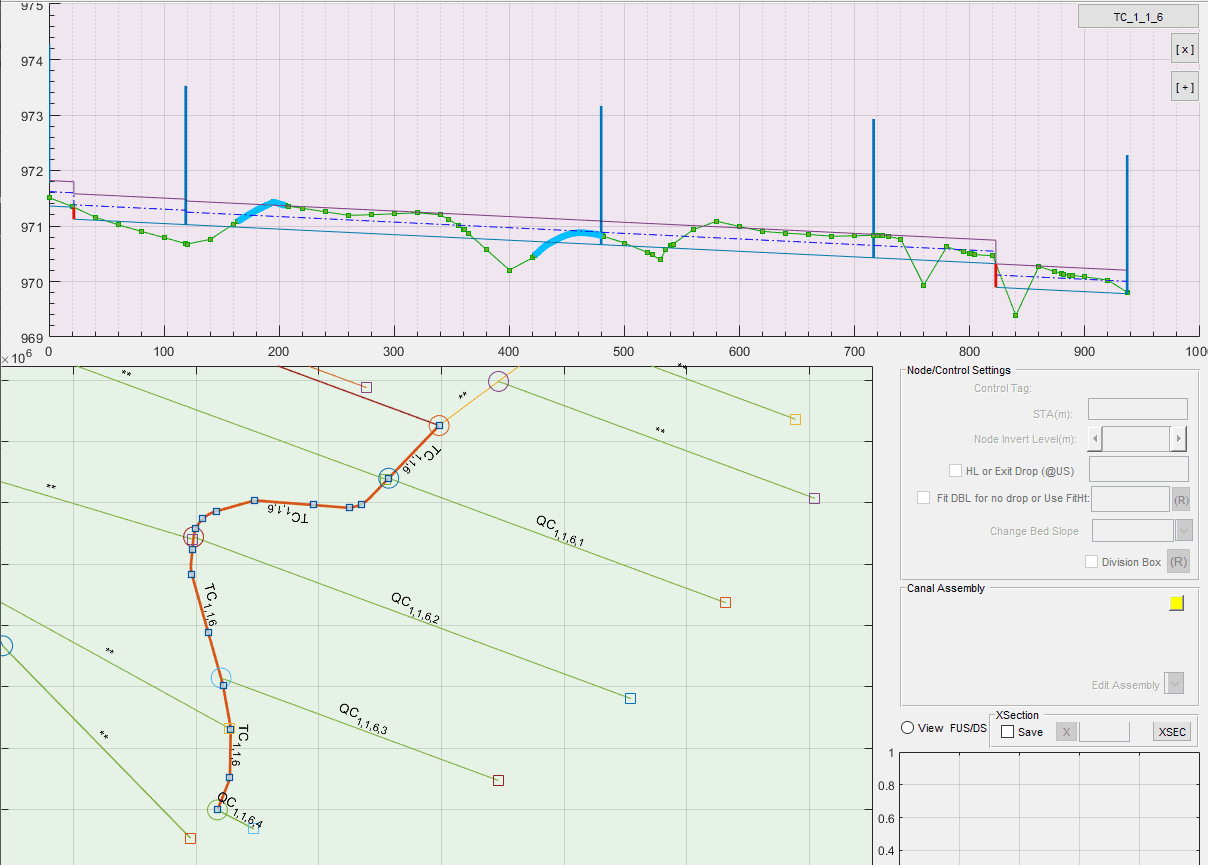
Select the desired canal route(s) whose Bill-of-Quantity is desired in plan view.
-
Go to
Explore Solutions > Data Tables > Generate Route BoQorExplore Solutions > Batch Processes > Bill-of- Quantity. The choice will depend on the user. The proceeding topics will cover different levels of BoQ outputs, and how to create them.
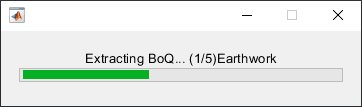
-
Set the desired reporting format, and accept. There are three options available: .rtf, .doc and .html options. While the former two create an editable text format suitable for MS Word, the last option creates and displays the output to the default browser.
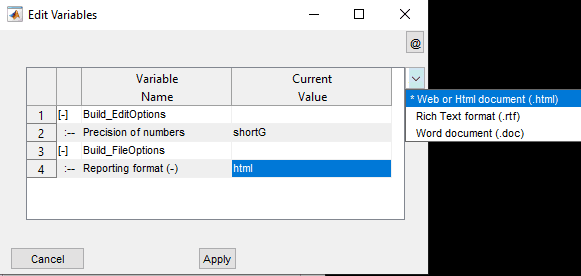
Hit Apply when done.
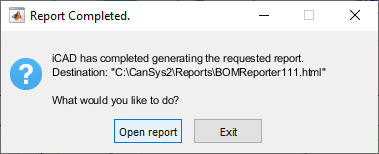
Select Open Report to view the report. This will invoke the necessary applicaiton to view the report.
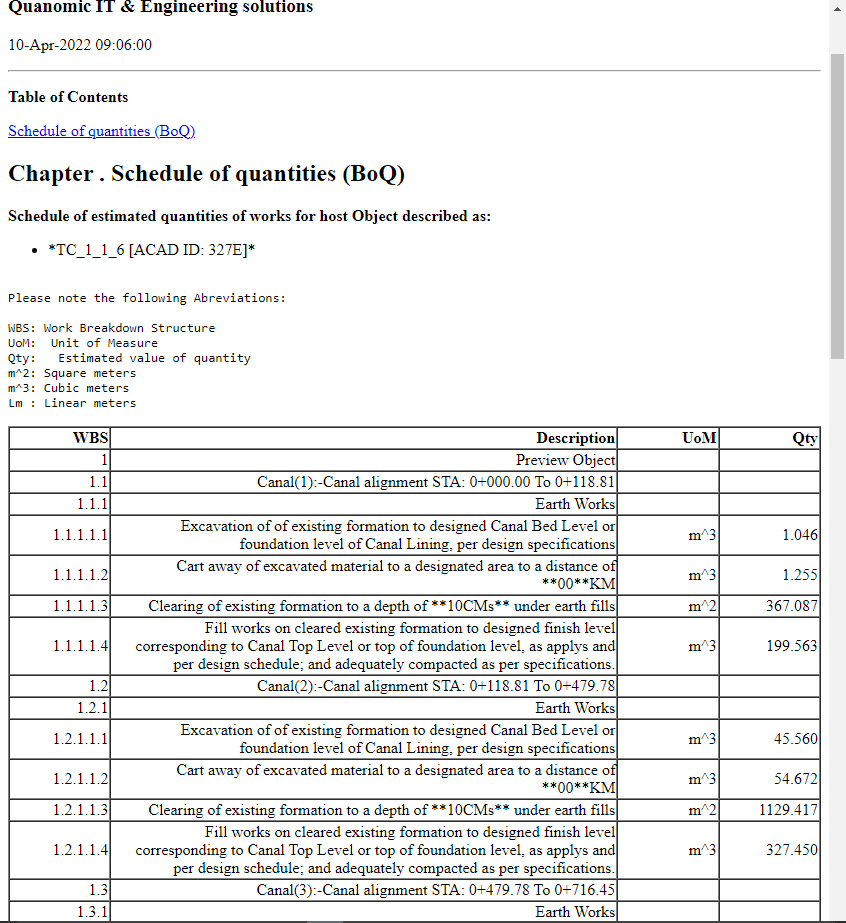
Note: End-of-Route turnout structures are always excluded from Bill-of-quantity listing.
Note: Closely spaced drops, whose placement creates an overlap during excavation, are skipped in BoQ. The user is notified accordingly, to resolve the issue and try again.
Below are the different types of BoQ reports that can be generated.
BoQ for Canal Segments
BoQ can be generated for a single segement of a route, that is the reach between any two control nodes. To do this:
-
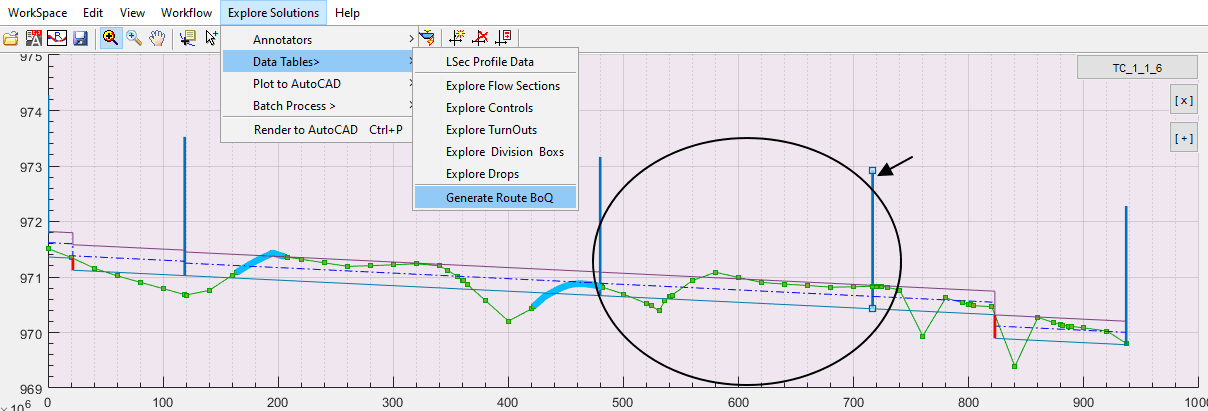
Select the node at the downstream end of the desired segment in profile view. In the figure below the segment upstream of the node at arround STA 700 is selected.
-
Start the command from
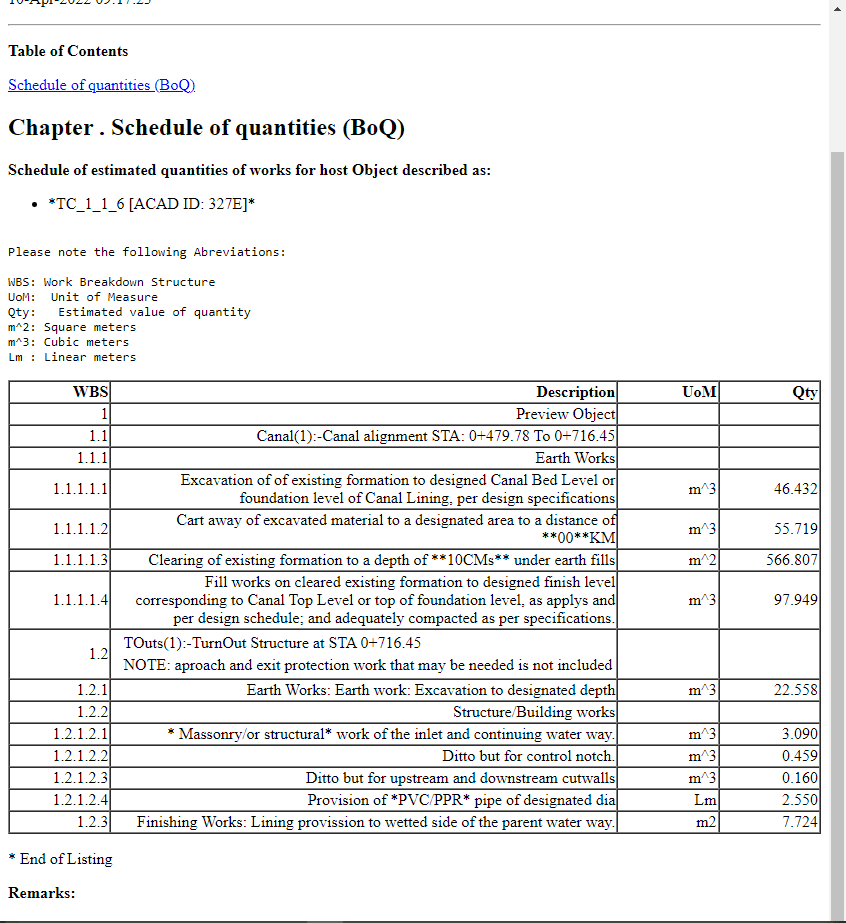
Explore Solutions > Data Tables > Generate Route BoQ. Follow the general steps to complete the process. Below is the extract for the segment. Notice, the report ONLY includes the range of the selected segment.
BoQ for Select group of Canals
Sometimes, extracting BoQ for selected group of canals may be needed. For this approach, the desired canals are instanced to an AutoCAD host object first. Then, using the Explore Solutions > Batch Processes > Bill of Quantity will do the job.
-
Enable Multi-Select from
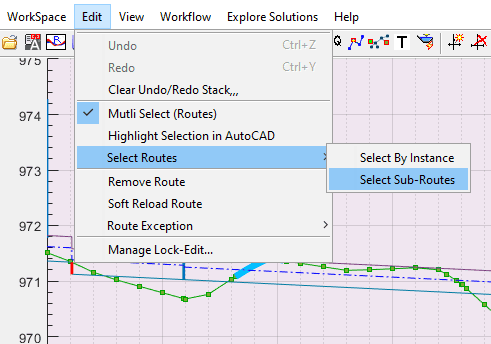
Edit > Multi-Select, and select the canal routes whose BoQ is desired in Plan view. This can be manually, by right clicking on each route. If the canals are branches of one parent canal, this can be conveniently done by first selecting the parent canal, and then usingEdit > Select Routes > Select Sub-Routesmenu command.
This will raise the Sub-Route selection dialog.
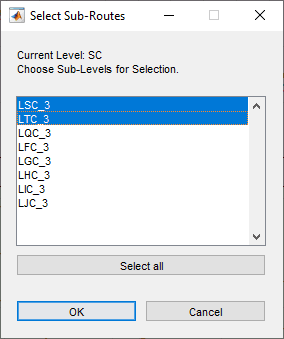
Note: The lists contain all possible leves defined in the Naming Style used for the project. The currently selected route may not have all the listed levels.
Pick the canal generations to include in the selection, and hit Ok.
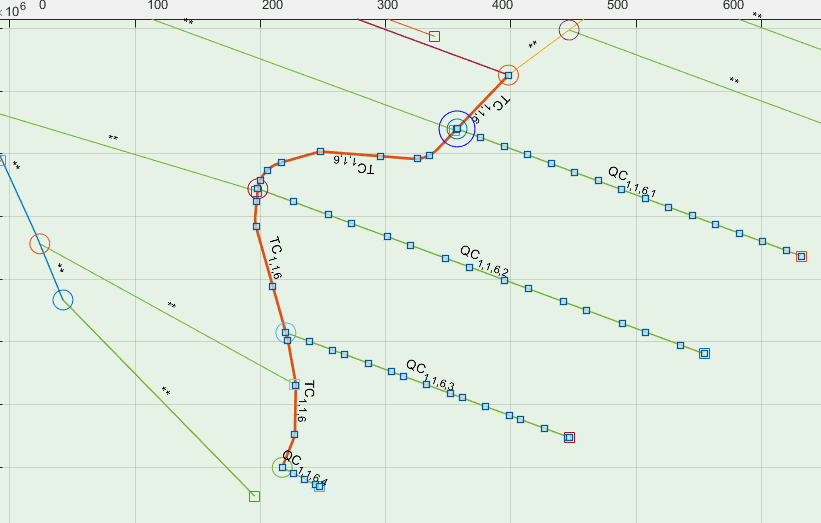
In the above example, this will select all the branches of the TC canal, including the TC canal itself.
-
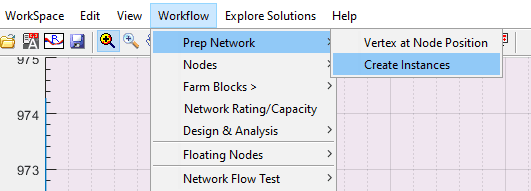
Prepare a host object in AutoCAD for the instance data. Then instance the selection from
Workflow > Prep Network > Create Instances.
This will list the objects currently selected.
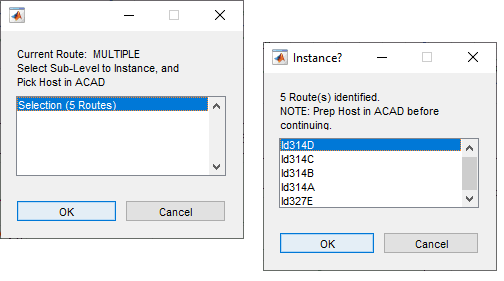
Confirm action, and AutoCAD will be in select mode. Pick the prepared host object.
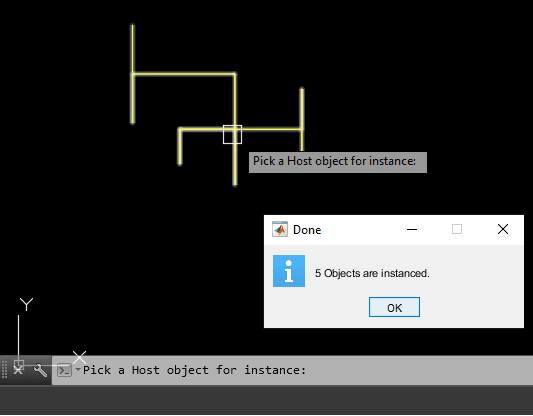
The Done dialog will confirm the results of the action.
-
Finally, use
Explore Solutions > Batch Processes > Bill of Quantity. AutoCAD will be in select mode. Pick the host object prepared.
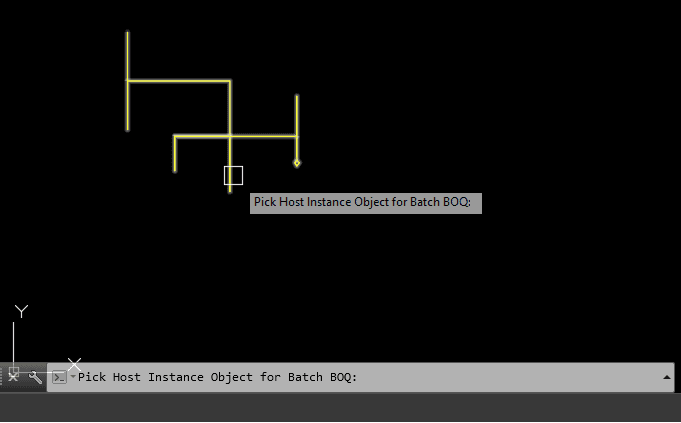
The process will automatically update all data contents for each of instanced routes, and report status.
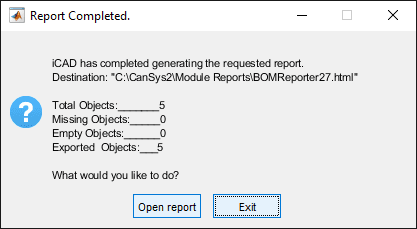
Confirming Open Report will display the data extracted. Notice the title for the report indicating multiple routes are selected for the listing.
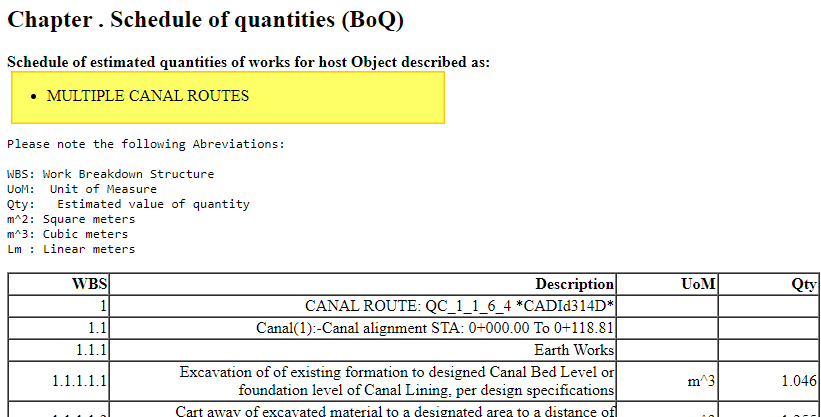
Notice the title indicating multiple canals are selected for the BoQ listing.
Settings for BoQ generation.
Quantity listing depends on values set to selected paramters. There are three imprtant parameters that affect the level of detail considered for quantity extraction.
-
Detailed or Summarized Listing
-
Considering Clearing Depth
-
Considering Structure locations
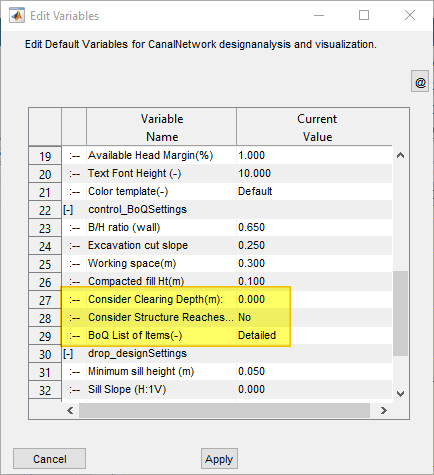
These parameters cab be set flexibly by the user from Workspace > Edit Preferences... menue command.
-
BoQ List of Items:
Detailed [Default] lists each componenet of the canal route separately, often resulting in a very long list.
Summarized: Using this option creates a listing that summarizes Canal Segments, Drops, Turnouts, and Division Boxes separately.
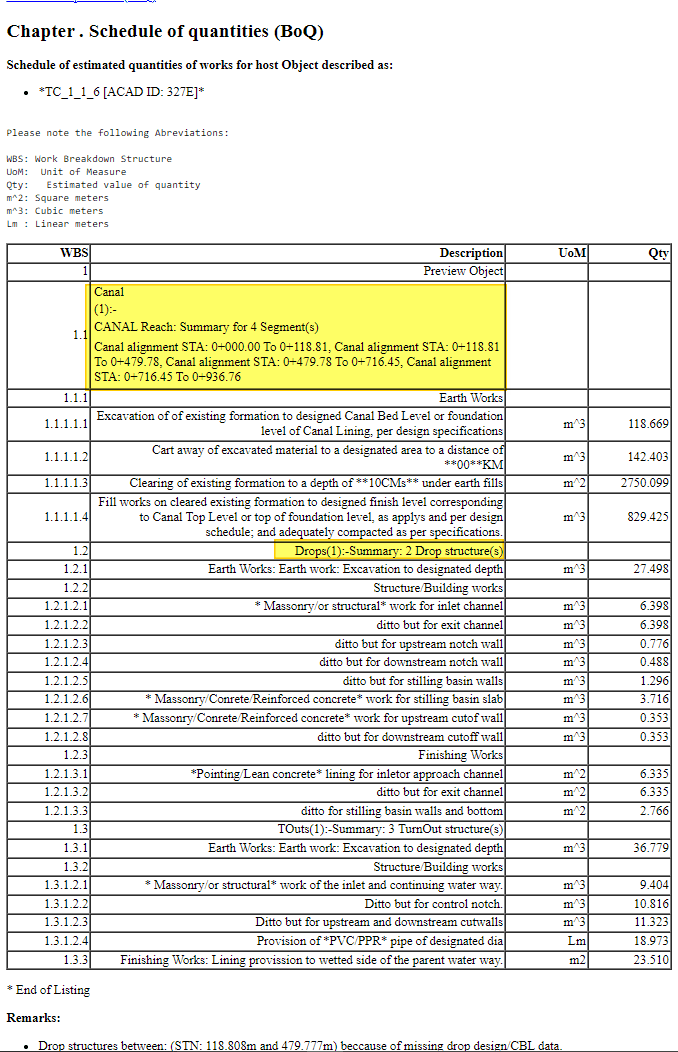
The above snapshot shows a summarized listing. Notice the description column for Canal, and Drops, explicitly listing summary for a number of segments and structures respectively.
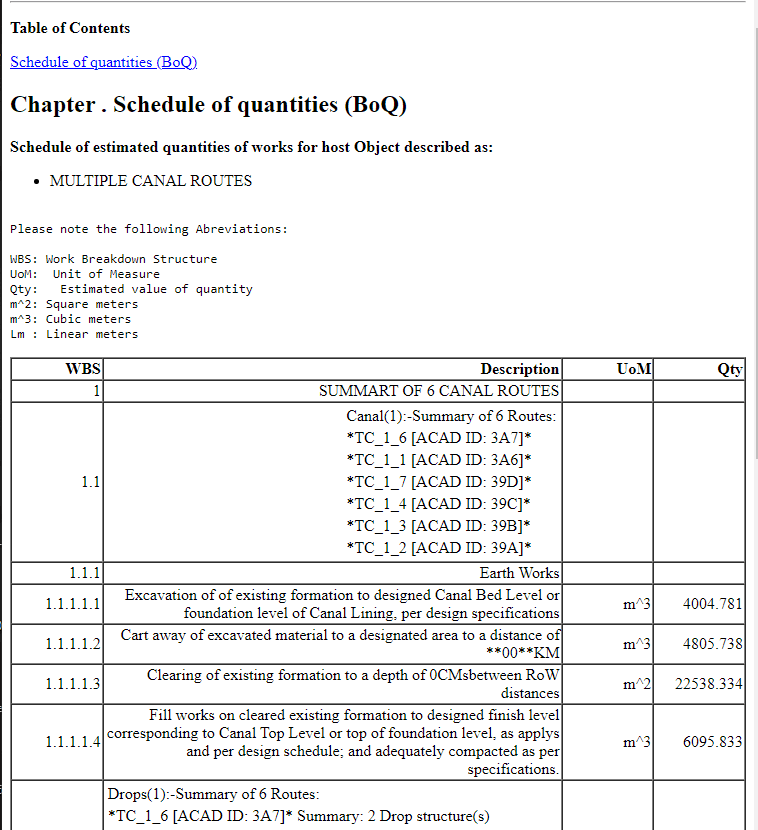
SummaryOfSummary: groups items together for summary display. This option woks ONLY for canals of the same generation,i.e., Multiple TC canals or Multiple QC canals for instance.
-
Clearing Depth:
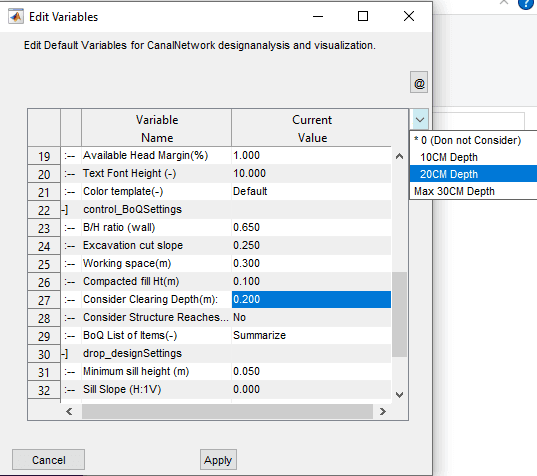
0 [Default]: This is the default setting, that assumes no clearing activity, and sets the clearing depth for the quantity listing to zero. Excavation and fill works on canal segements are calculated to existing ground level (OGL) formation.
d>0: Using this option does two things:
(a) Change listing for Clearing to the specified depth
(b) Account for specified depth of clearing, when calculating cut and fill areas at each station.
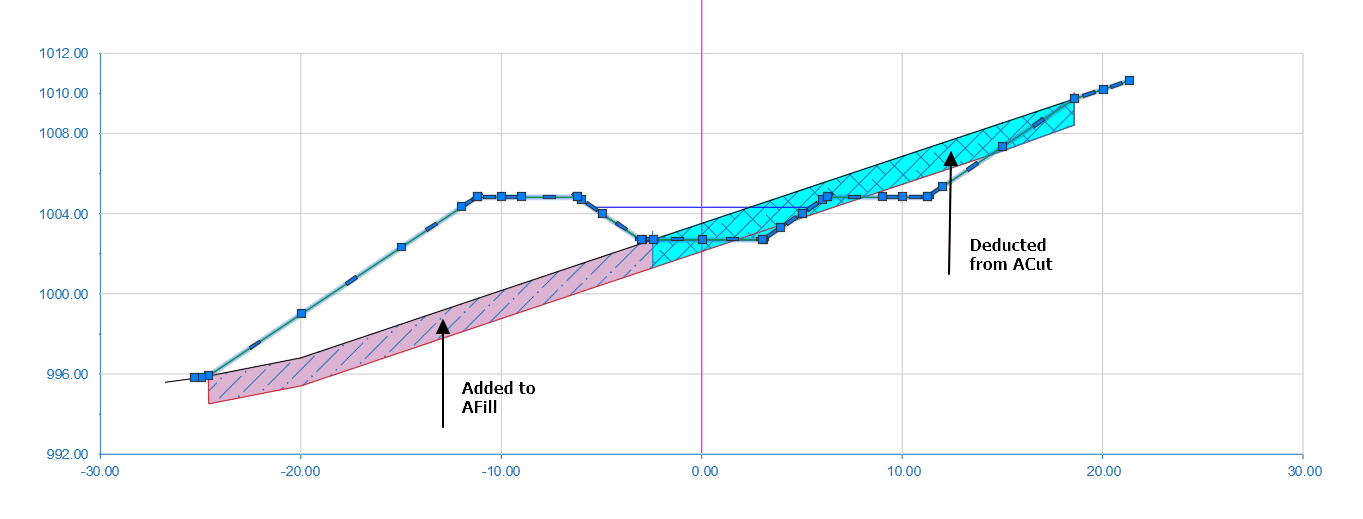
This schematic shows how clearing depth is considered for improving the accuracy of earth work estimates. Note also that, the clearing depth is exagerated for demonstration purposes. The shaded region represents area deductions and contributions to cut and fill data, respectively, extracted in Profile Data listing.
Note: After changing this setting, update the profile data for the route using Explore solutions > Table Data > Profile Data. Else, the changes are not captured in BoQ listing.
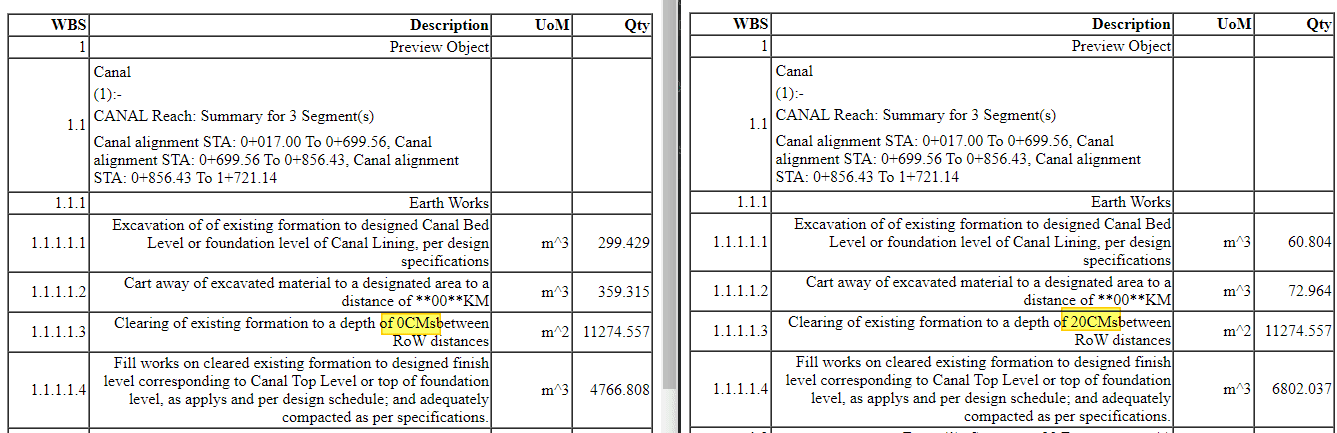
Below example shows the difference in quantity for d=0, and d=20cm. Notice the highlighed difference in listed clearing depth, and corresponding volumes for Excavation, Cartaway, and Fill works.
-
Structure Reaches
No [Default]: this is the default setting, and reports cut and fill volume listing with out considering those due to the structures. Note, earth works are also reported for structures separately. Therefore, this may slightly increase the quantity listed for canal earth works.
Yes: This option, considers structures location in calculating earth cut and fill volumes. In this method, the begining and ending of each structure including working space at both ends is used to exclude station items from calculation. For this method, if the strucures are explored, the designed lengths are used to determine the begining and end of each structure. If not, however, a default value is used as follows:
Turn Outs:
-
length before station= 1.2 + sqrt(Q) Working Space
-
length after station= 3.0 + Working Space.
Drops Structures:
-
Length before station= 1.25*Drop Height
-
Length after station= 2.25*Drop Height
-
-
As may be expected, cut and fill volumes to canal segments reduce with this option enables.
Note: Only turnouts and drops are included in the recent version. Future versions will be updated to account division boxes as well.